
How to Restore a Full cPanel Backup to VPS/Dedicated Server As Root.
Overview
This Feature allows you to Restore a full cpanel backup by username or cpmove file which has been backed up by you from your old VPS or dedicated server OR a cpanel account.
The filename of the backup must use one of the following formats otherwise it won't let you restore:
cpmove-{USER}cpmove-{USER}.tarcpmove-{USER}.tar.gz{USER}.tar{USER}.tar.gzbackup-{BACKUP-DATE_TIME}_{USER}.tarbackup-{BACKUP-DATE_TIME}_{USER}.tar.gz
In order for this feature to work, the backup or cpmove file must reside in one of the following directories:
/home/usr/home/web/home2/home3/root/usr
To restore a full cPanel backup or cpmove file follow the steps below:
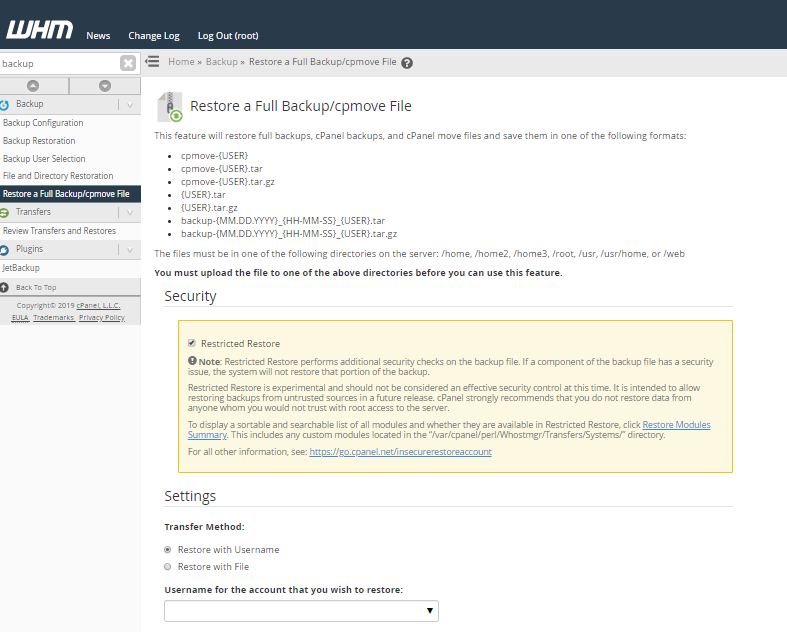
1. Log into your WHM account (e.g yourdomainname.com:2087)
2. Navigate to Backup -> Restore a Full Backup/cpmove FIle.
Select the Options you want to use on restoration:
– Restricted Restore – for security, let this option checked
Restricted Restore performs additional security checks on the backup file. If a component of the backup file has a security issue, the system will not restore that portion of the backup.
Transfer Method:
- Restore with Username – if you have the backup file on the same server and want to restore than select this option ,
- If you want to restore a full cpanel backup for your web to new server then choose File option and upload it from your computer.
– Overwrite the existing user. – if you want to overwrite the exiting account only if you already have created a cpanel account in WHM.
Optional: Assign a Dedicated IP Address – if you want to assign an IP for the account (you must have free IPs on the server)
Click the Restore button. You will see the restoration process and any warnings/errors at the end. You can also use the Pause Queue and Abort buttons, if you want to pause or abort the process.